

Guests waiting for seats
When a session sells out, the guests who missed it don’t have to leave. They can join a waitlist on your website, and Zittle messages them on WhatsApp as soon as seats free up. There’s nothing to set up, and you never need to message anyone yourself.
How guests join
Section titled “How guests join”On your website, guests see Notify Me:
- On a sold-out date, in place of Book Now, with Notify me for any date here under it for any date at that venue.
- On an event that’s fully booked, or has no upcoming dates yet, to hear about any date or venue of it.
- On your events, city and venue pages when there’s nothing to book there.
Guests log in first, as they would to book, because the alert goes to their WhatsApp number. After joining, they can widen their wait in one tap, for example to Any date or venue of this event, or to any event in their city.
A wait for one date lasts until that date starts. A wider wait lasts 60 days.
See who’s waiting
Section titled “See who’s waiting”In your dashboard, go to Products. When guests are waiting, a notice at the top says how many, and for what.
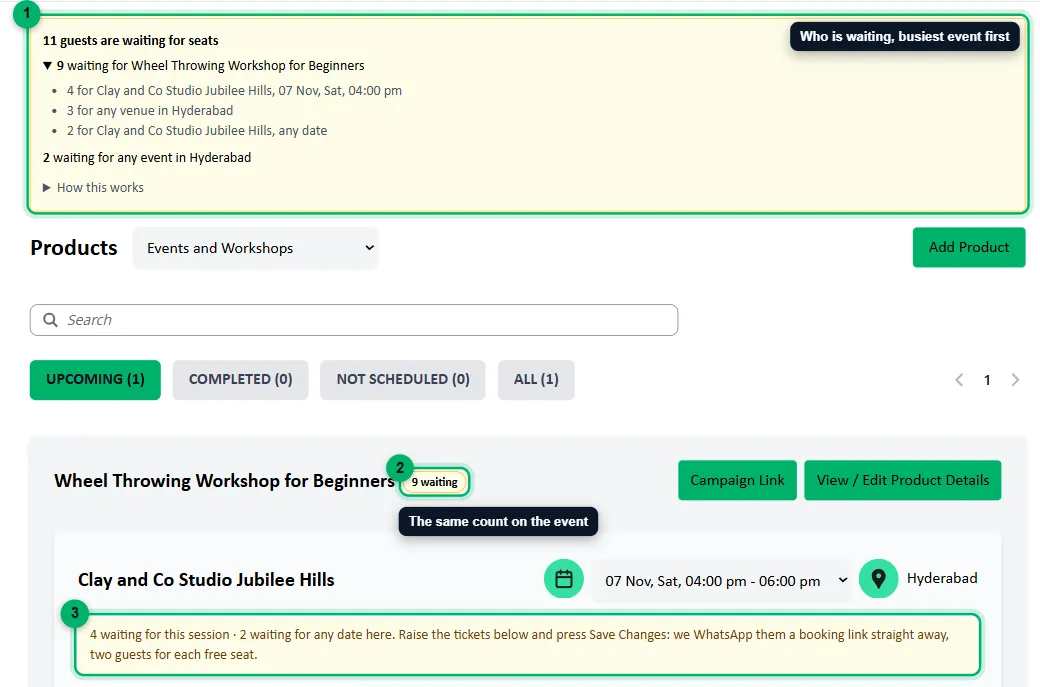
- The notice: every event guests are waiting for, the busiest first. Select an event to see where they’re waiting: a date, a venue, or any venue in a city. Guests waiting for any of your events in a city are listed after the events.
- N waiting next to the event’s name: the same total, so you can find the event further down the page.
- On the venue card: how many are waiting for the date shown, and for any date at this venue.
You’re also told by email when the first guest joins an event’s waitlist, and again at 5, 10, 25 and 50 guests and every hundred after that. When more than 10 are waiting, you get a WhatsApp message too.
Free up seats
Section titled “Free up seats”Guests are messaged whenever seats open up on what they’re waiting for. That happens when you:
- add tickets to a date: on the venue card under Manage your events, on the venue’s packages, or with the Bulk Editor,
- add a new date, one at a time or in bulk,
- resume a paused date.
It also happens on its own when a booking is cancelled, or a guest’s payment fails or isn’t finished in time.
What guests get
Section titled “What guests get”Each free seat is offered to two waiting guests, picked at random, since not everyone who’s told will book. They get a WhatsApp message with a link to book, and seats go to whoever books first. A guest who arrives after the seats are gone can tap Notify Me again.
Each guest is messaged once and then leaves the waitlist. A guest waiting in several ways, such as for one date and for any date of the event, gets a single message, linking to the one closest to what they asked for.
Bookings made from these messages show Waitlist alert under Booked From in the booking’s details, so you can see the waitlist working. See Manage bookings.