

Change dates and prices in bulk
A holiday weekend, a bigger room for every studio, or a price rise for one busy day: changes like these touch many events and venues at once. The Bulk Editor makes them in one run instead of venue by venue.
To change one date at one venue, use the switches on the Products page instead. See Pause or cancel a session.
How a run works
Section titled “How a run works”In your dashboard, go to Bulk Editor and choose what to change at the top:
- Pause or resume: stop or restart bookings on a range of dates.
- Tickets per slot: change how many tickets each date has.
- Package prices: change prices, discounts, package tickets or deposits.
Every run then follows the same steps.
-
Choose the venues: the city, at least one event, venue, venue group or category tag, and which of their venues to change. This works exactly as in Add dates in bulk. For changes it starts on Already scheduled.
-
Choose the dates, and what to change. The sections below cover each action.
-
Select Preview. Zittle shows what the run will change before anything is saved. Changing anything in the first two steps clears the preview, so you always confirm the latest numbers.
-
Select the button under the summary to apply the change. When the run finishes, its result shows what changed and what was skipped.
Dates are picked with From and To (included). The run reaches every upcoming date that starts on those days, up to 12 months. Cancelled dates are never changed.
Pause or resume bookings
Section titled “Pause or resume bookings”Choose Pause bookings or Resume bookings, then the dates.
- Pause stops new bookings on those dates. Guests who already booked keep their places.
- Resume opens them for booking again.
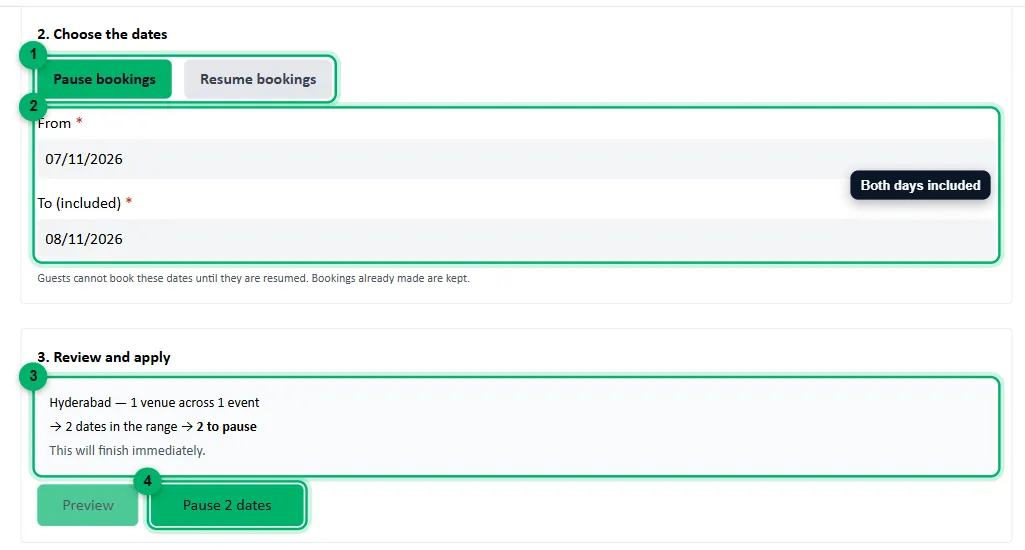
- Pause bookings or Resume bookings.
- From and To (included).
- The summary: the dates in the range, and how many the run will change.
- Pause N dates applies it.
Dates that are already paused, or already taking bookings when you resume, are left alone. To resume, the button reads Resume N dates.
To call a session off and refund its guests, cancel it instead. Cancelling isn’t available in bulk.
Change tickets per slot
Section titled “Change tickets per slot”This changes the tickets on each date, for venues that count seats Shared across packages. Venues that count seats Per Package are left out. Change those with package prices.
-
Choose the dates.
-
Choose how to change the count:
- Set to: every date gets the same number of tickets.
- Change by: each date’s own count goes up or down by this much. Enter a negative number to remove tickets. Venues keep their differences: with Change by 10, a venue with 20 tickets gets 30 and one with 35 gets 45.
-
Select Preview. Under Each venue’s own count, every venue is listed with its dates, its tickets now and the most tickets sold for any one date. Enter an Own count to give a venue its own number. Leave it blank to apply the change above.
-
Select Update tickets.
A date never gets fewer tickets than it has already sold. If the new count would be lower, that date keeps its current count and the result says so. The table warns about these before you apply.
Change package prices
Section titled “Change package prices”Prices are changed per package, across every venue of the events you chose. Zittle matches a package across venues by the saved package it was picked from, so use the same saved package on each venue. See Add ticket packages. A package that wasn’t picked from your saved packages can’t be matched, and the editor says how many were left out.
Choose where the change lands
Section titled “Choose where the change lands”- Venue’s own price changes the package itself. Every date that doesn’t have a price of its own follows it, including dates already scheduled.
- Slots in a date range changes only the dates you pick. The venue’s own package stays as it is.
Then select Preview. Under Enter the changes, each package is listed with its current prices.
Enter the changes
Section titled “Enter the changes”For each package:
- Price: Set to ₹ a new price, or Increase by % or Decrease by %. A percentage starts from the current price of each venue, or of each date with Slots in a date range, so events priced differently keep their differences. The result is rounded down to whole rupees.
- Discount %.
- Tickets: Set to or Change by ±, for venues that count seats Per Package. As with tickets per slot, a date never gets fewer tickets than it has sold.
- Partial payment, with Venue’s own price only: Keep as is, Fixed ₹, Percentage % or Remove. A fixed amount must be less than the price after any discount. If it isn’t, that package keeps its current partial payment.
Leave a field blank to keep it as it is.
As soon as you enter a price, the package shows its prices before and after, such as Price: ₹500–800 → ₹550–880 across 3 events.
Select Show prices for N events to see each event and venue with its Price now and the price After the change. To give one event, or one venue, a different price, enter it under Own price ₹. An event’s own price applies to all its venues, and a venue’s own price applies to that venue only.
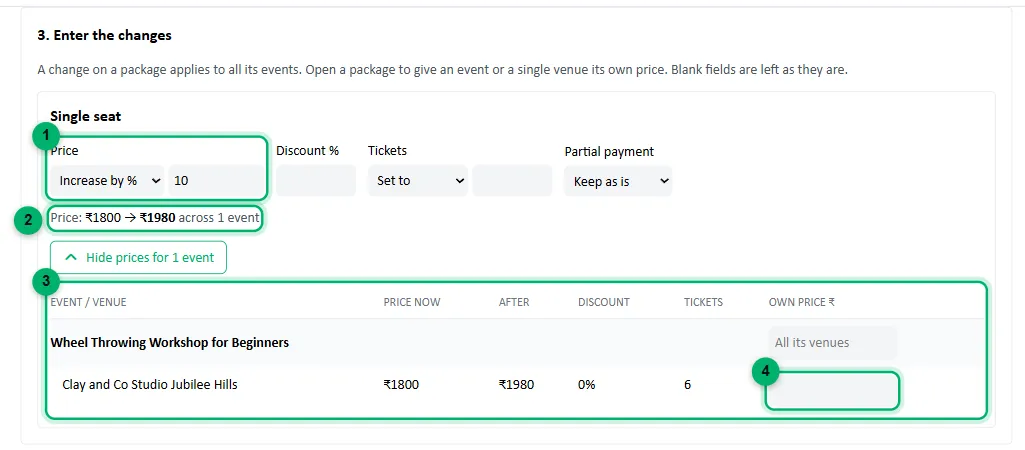
- Price: here, Increase by % 10.
- The package’s prices before and after the change.
- Each event and venue with its Price now and After.
- Own price ₹ for one venue, or for all of an event’s venues on the event’s row.
Select Apply price changes to save.
Bookings already made keep the price they paid.
Recent runs
Section titled “Recent runs”Every run is listed under Recent runs, with what it changed and its result. Reuse fills in the same action, venues and dates for your next run, and for a pause or a ticket change, the same choice. New prices and venues’ own counts are never copied, so enter them again against a fresh preview.
A single run can change up to 2,000 dates or prices. If yours is bigger, narrow it down and run it in parts.