

Pause or cancel a session
Plans change. A teacher falls ill, the studio floods, or a session is full in practice even though seats show as free. Zittle gives you two tools:
- Pause stops new bookings. Guests who already booked keep their places, and you can resume any time.
- Cancel calls off a session. Every guest is refunded and told automatically, and it can’t be undone.
Pause bookings
Section titled “Pause bookings”From the Products page
Section titled “From the Products page”In your dashboard, go to Products. Each venue of an event has its own switches.
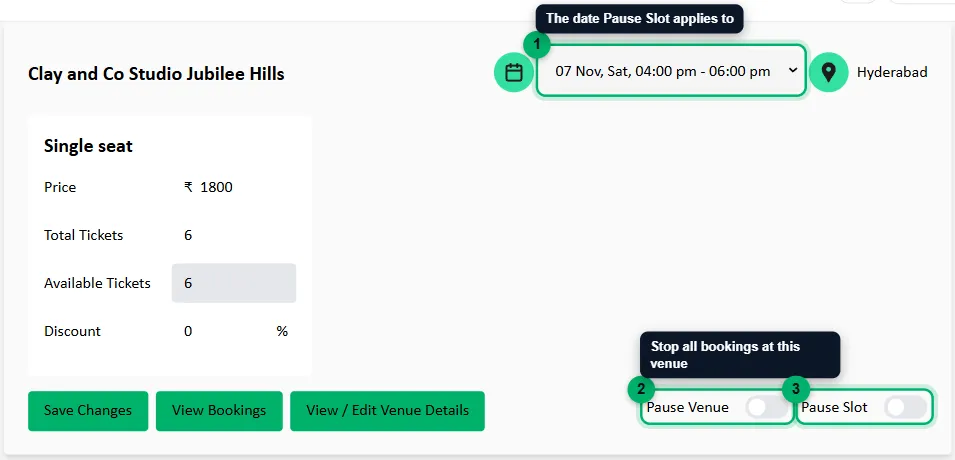
- Choose the date.
- Pause Venue: stops new bookings for this event at this venue, on every date.
- Pause Slot: stops new bookings for the date you chose.
Turn a switch off again to reopen bookings.
From the venue’s dates
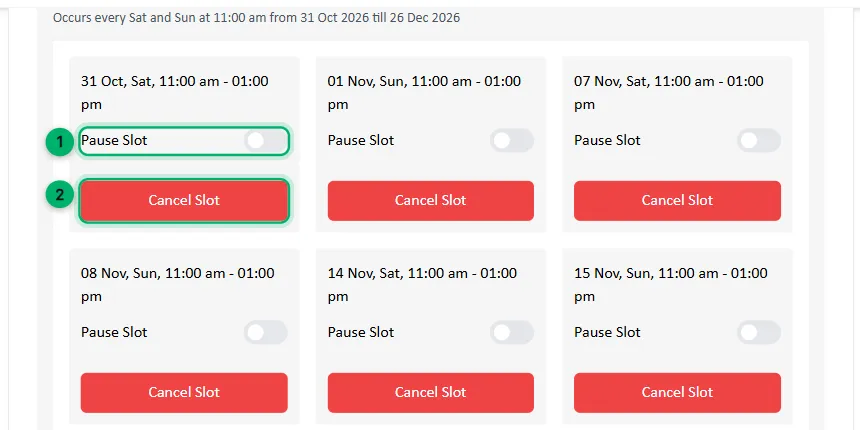
Section titled “From the venue’s dates”On the event’s venue, under Upcoming Slots, you can pause a single date, or with Pause All, every date in a repeating schedule. See Managing your slots.
Cancel a session
Section titled “Cancel a session”Cancel a session when it won’t happen at all.
-
Open the event’s venue and find the date under Upcoming Slots. For a repeating schedule, expand it with the arrow to see each date.
-
Select Cancel Slot.
-
Enter the code Zittle emails you, and confirm.
When you cancel a session:
- Every paid booking for it is cancelled.
- Guests who paid online are refunded what they paid, minus the platform fee. If you’ve already been paid out for those bookings, the refunds come off your next payout.
- Every guest gets a WhatsApp message saying the session was cancelled.
- The session is removed from your website and marked Cancelled in your dashboard.
- The Zittle team is told, so they can check that the refunds went through.
Which one to use
Section titled “Which one to use”| Situation | Use |
|---|---|
| The session is full, or you’re not sure it’ll run | Pause Slot |
| You’re taking a break from a venue for a while | Pause Venue |
| A whole season is on hold | Pause All on the schedule |
| The session won’t happen | Cancel Slot |
| One guest can’t come | Cancel their booking |