

Run events at more venues
Opening a second studio, running a pop-up at a café, or taking your workshop to another city? You don’t need to set your events up again. The Venues page shows which events run at each place, and adds them to a new one in a few steps.
The Venues page
Section titled “The Venues page”In your dashboard, go to Venues. Your venues are grouped by city.
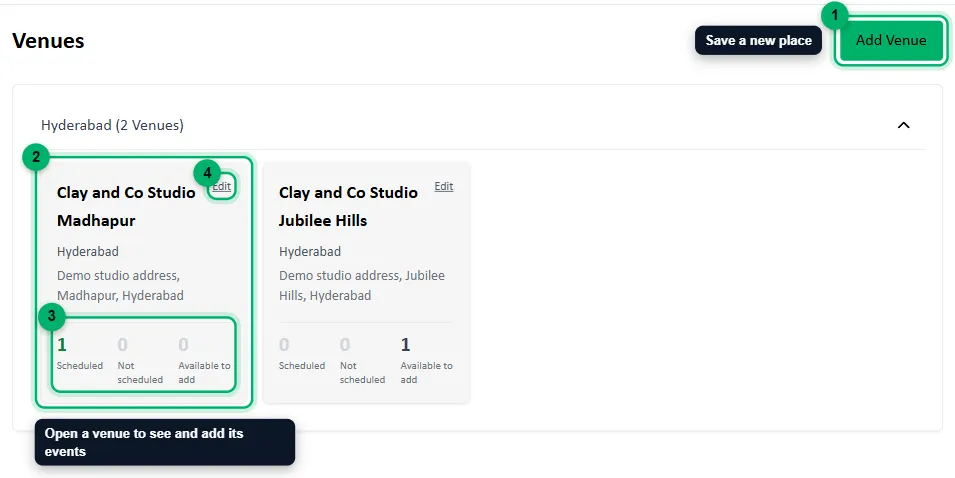
- Add Venue saves a new place. It asks for the same details as when you first added a venue.
- Select a venue to open it.
- How many of your events are Scheduled at the venue, Not scheduled (added, but with no upcoming dates), and Available to add.
- Edit changes the venue’s details.
Add events to a venue
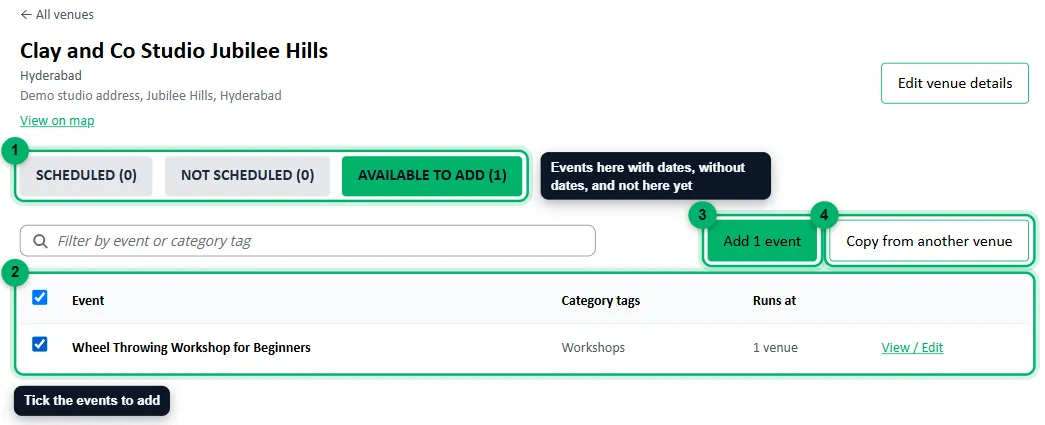
Section titled “Add events to a venue”Open the venue and choose Available to add.
-
The tabs: events Scheduled here, Not scheduled here, and Available to add.
-
Tick the events to add.
-
Select Add to set up their packages, or
-
Select Copy from another venue to bring across every event that runs at another venue, each with its own packages and prices.
Set the packages
Section titled “Set the packages”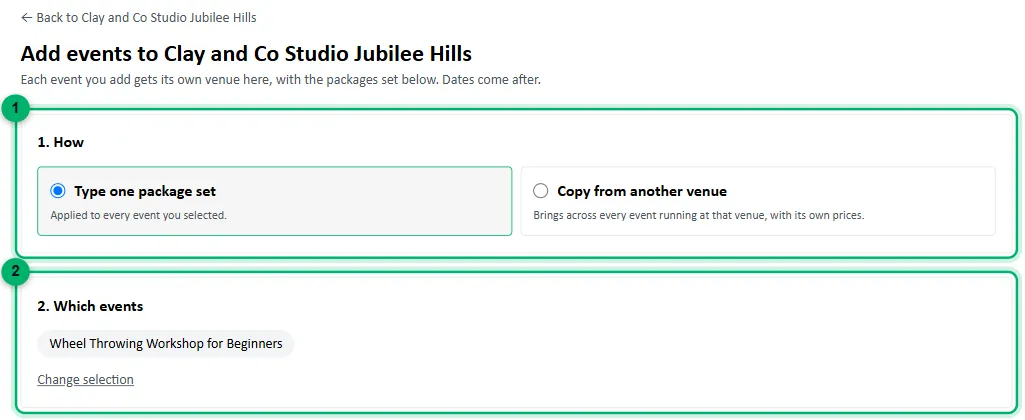
- How: Type one package set applies the same packages to every event you picked. Copy from another venue copies them instead.
- Which events: the events you picked. Select Change selection to go back.
When you type the packages:
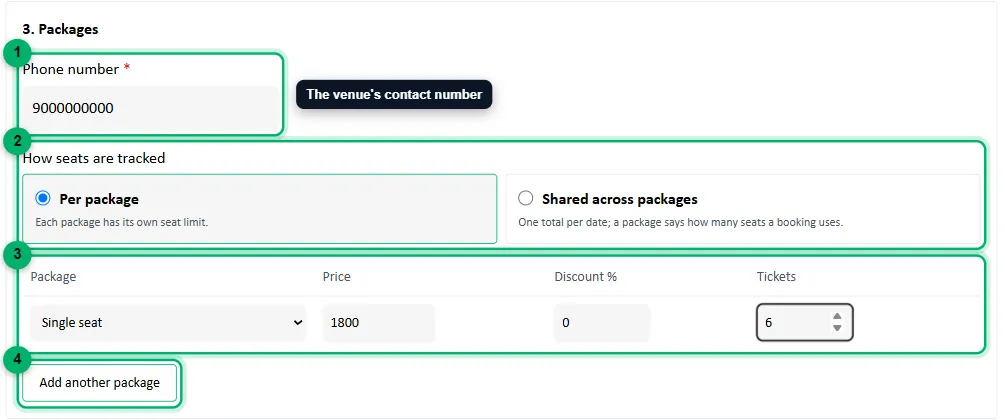
- Phone number: the 10-digit contact number for this venue.
- How seats are tracked: Per package, where each package has its own seat limit, or Shared across packages, with one total per date. You set that total when you add the dates. This choice can’t be changed later. See Add a venue.
- Each package’s Price, Discount % and Tickets. Pick from your saved packages, or choose + Add new package.
- Add another package for more.
Review and add
Section titled “Review and add”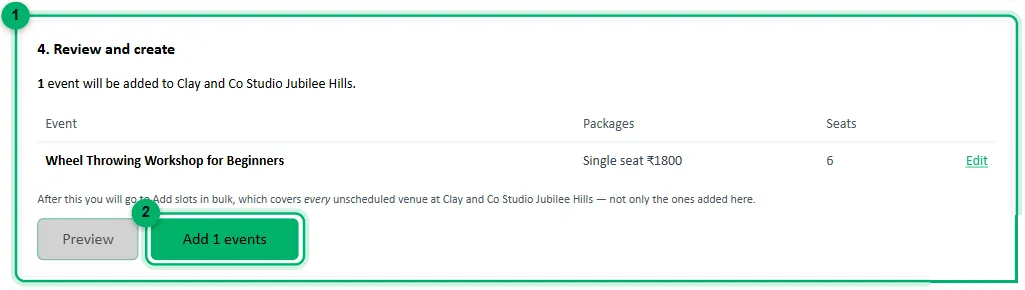
- Select Preview to see exactly which events will be added, with their packages and seats. Events that can’t be added, such as ones that already run at this venue, are listed as skipped, with the reason.
- Select Add events.
The events now run at the venue, without dates yet. Zittle takes you straight to Add dates in bulk, already set to this venue’s events that aren’t scheduled.
How guests see more than one venue
Section titled “How guests see more than one venue”- On the event page: each event’s Venue display setting chooses between one card with the venues in a dropdown, and a separate card for each venue. See Create your first event.
- Across cities: guests choose a city on your website and see the events running there. If you run everything in one city, you can turn this off with Disable City Selection in Website Details.