

Add dates in bulk
When you run several events, or the same event at several venues, adding dates one venue at a time is slow. Bulk Add Slots applies one schedule to every event and venue you choose in a city, in a single run.
To add dates for one event at one venue, use Add dates and times instead.
In your dashboard, go to Bulk Add Slots.
1. Choose what to schedule
Section titled “1. Choose what to schedule”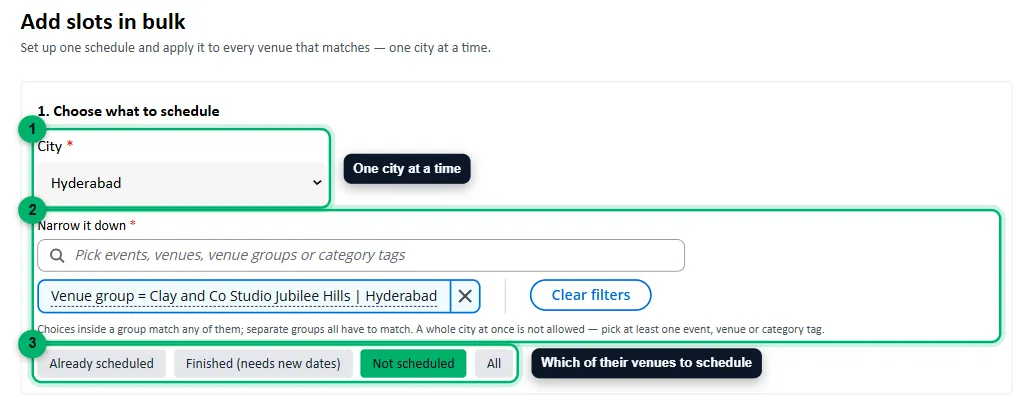
-
City: each run covers one city.
-
Narrow it down: pick the events, venues or category tags to schedule. A whole city at once isn’t allowed, so pick at least one. Choices inside the same group match any of them, and separate groups all have to match. For example, the tag Workshops and the venue Jubilee Hills in separate groups means workshops at Jubilee Hills.
-
Choose which of their venues to schedule: Not scheduled (no upcoming dates yet), Finished (needs new dates), Already scheduled, or All.
2. Set the schedule
Section titled “2. Set the schedule”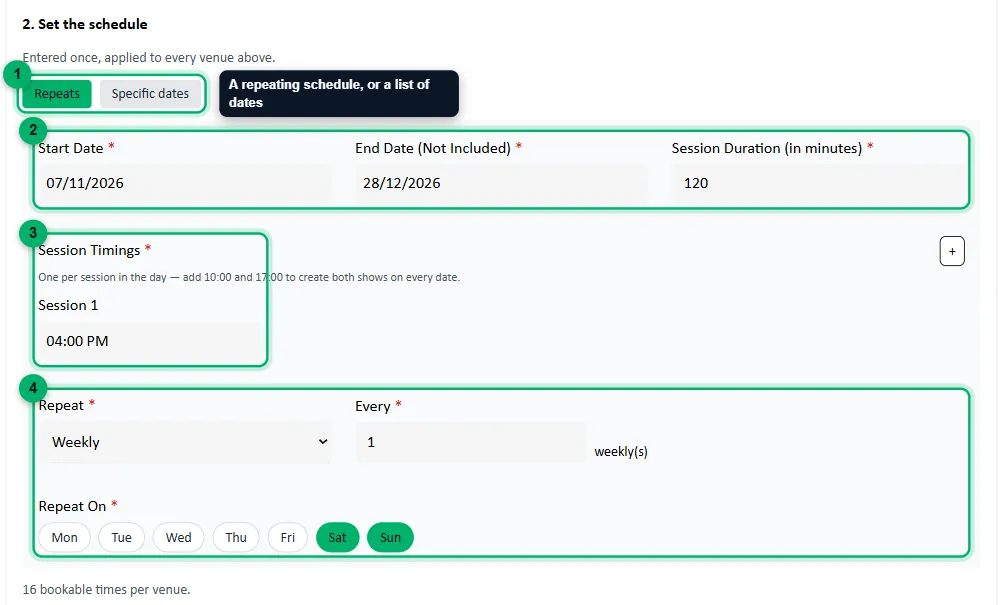
-
Repeats for a regular schedule, or Specific dates to list each date with its start and end time.
-
Start Date, End Date (Not Included) and Session Duration (in minutes). Sessions run up to the day before the end date.
-
Session Timings: the start time of each session in the day. Select + to add another, such as 10:00 and 17:00 for two sessions a day.
-
Repeat, Every and Repeat On: for example Weekly, every 1 week, on Sat and Sun.
Below the schedule, Zittle shows how many bookable times it creates for each venue.
3. Check the prices
Section titled “3. Check the prices”Select Preview. Every venue keeps its current prices unless you change them.
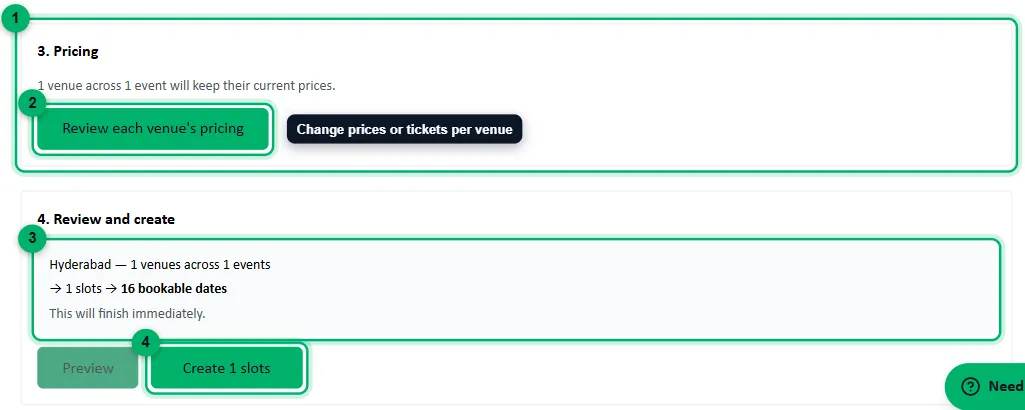
- The Pricing step says how many venues and events the run covers.
- Review each venue’s pricing opens the prices for each venue and package.
- The summary: the venues and events, the number of slots, and how many bookable dates they create.
- Create starts the run.
To change a price, open Review each venue’s pricing:
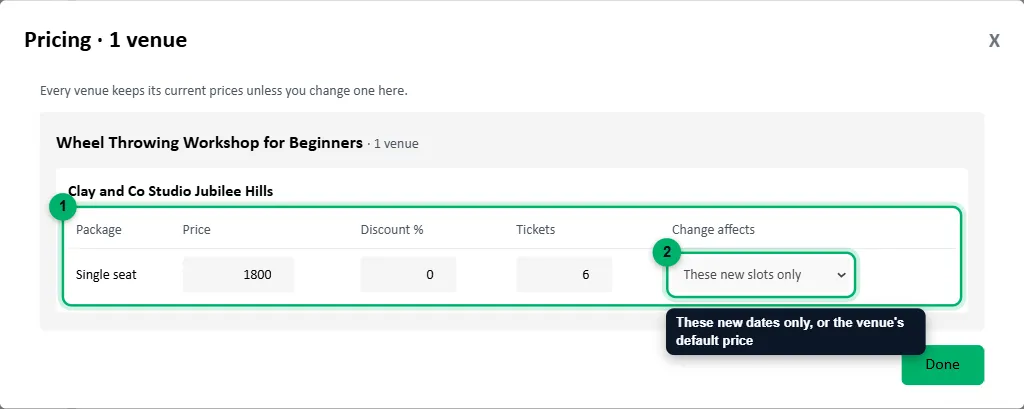
- For each package, the Price, Discount % and Tickets.
- Change affects: These new slots only, or The venue’s default price.
If a venue counts seats Shared across packages, enter the tickets per date here as well. Without it, the new dates would have no seats.
4. Create the dates
Section titled “4. Create the dates”Select Create. When the run finishes, its result shows how many slots and bookable dates were created.
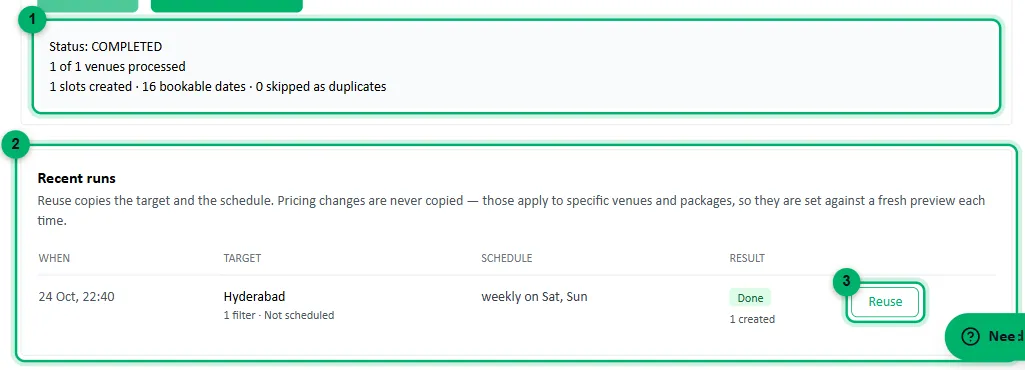
- The result of the run.
- Recent runs lists your earlier runs.
- Reuse fills in the same choices and schedule for your next run, so you only need to change the dates. Prices are never copied, so check them again.
A venue that already has a session at the same time is skipped, so running the same schedule twice doesn’t create duplicates. A single run can create up to 2,000 slots. If yours is bigger, narrow it down and run it in parts.