

Add dates and times
Dates and times are called slots in your dashboard. Guests book a specific slot, so add at least one to start taking bookings.
On the venue, under Slots, select Add Slot. A slot can be a single session, or a repeating schedule such as every Saturday at 11 AM.
A single session
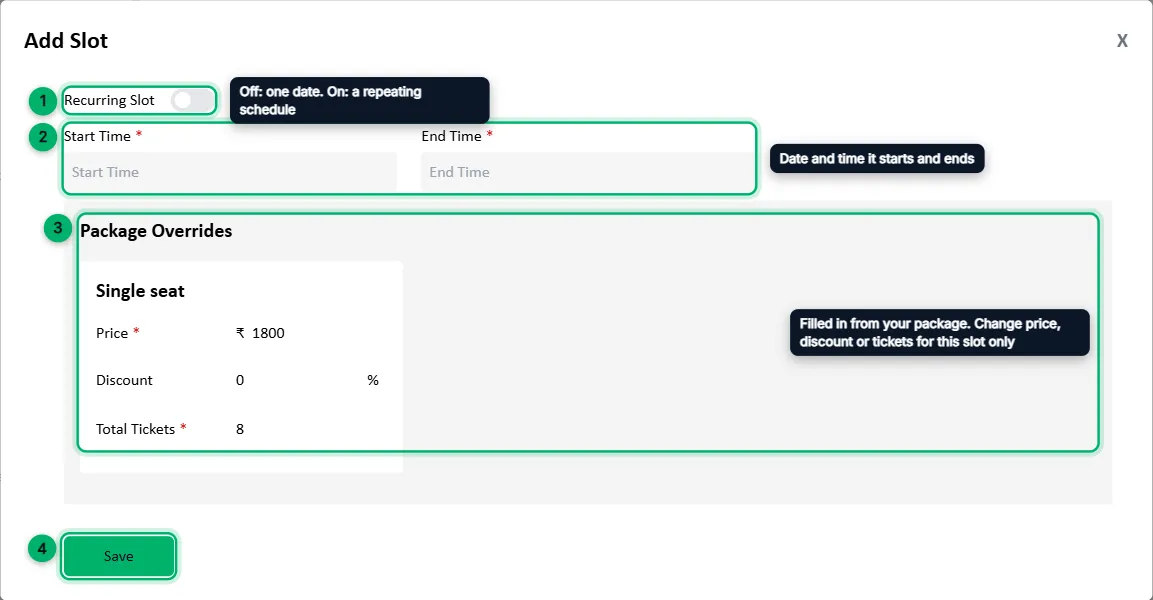
Section titled “A single session”Leave Recurring Slot off.
-
Make sure Recurring Slot is off.
-
Choose the Start Time and End Time: the date and time the session starts and ends.
-
Package Overrides: each package’s price, discount and number of tickets, filled in from the package. Change them to use different values for this session only.
-
Select Save.
A repeating schedule
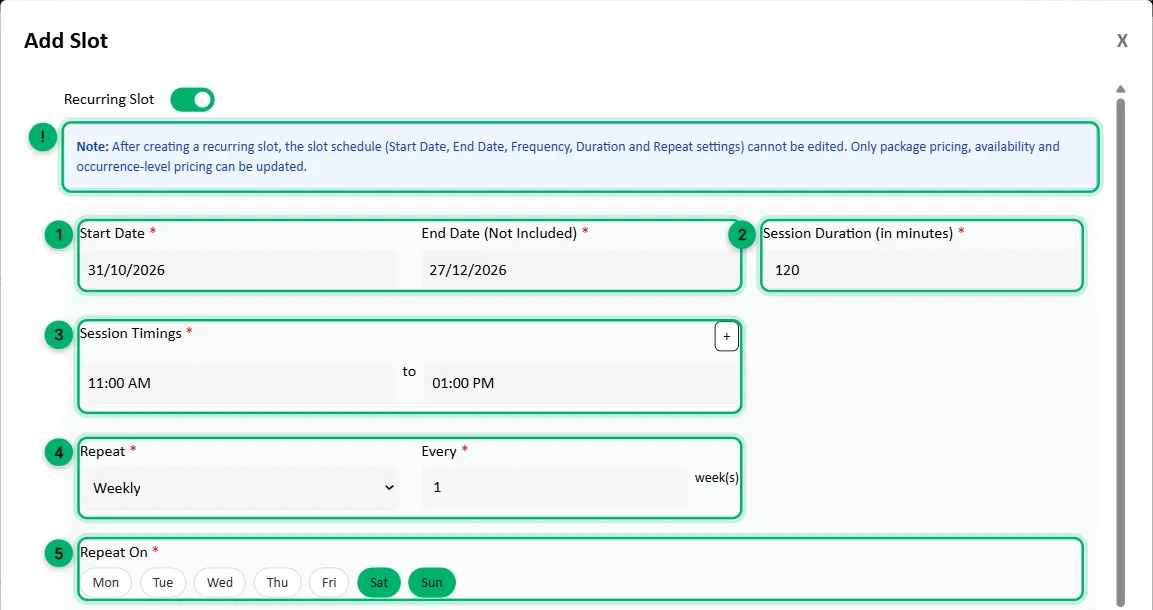
Section titled “A repeating schedule”Turn Recurring Slot on to create many sessions at once.
-
Choose the Start Date and End Date (Not Included). Sessions run from the start date up to the day before the end date. The earliest start date is tomorrow.
-
Session Duration (in minutes): how long one session lasts, such as 120.
-
Session Timings: the time each session starts and ends, such as 11:00 AM to 01:00 PM. To run more than one session a day, select +. Zittle adds the next session straight after the last, using the session duration.
-
Repeat and Every: how often the schedule repeats: Daily, Weekly or Monthly, and every how many days, weeks or months.
-
Repeat On: for weekly schedules, choose the days, such as Sat and Sun.
-
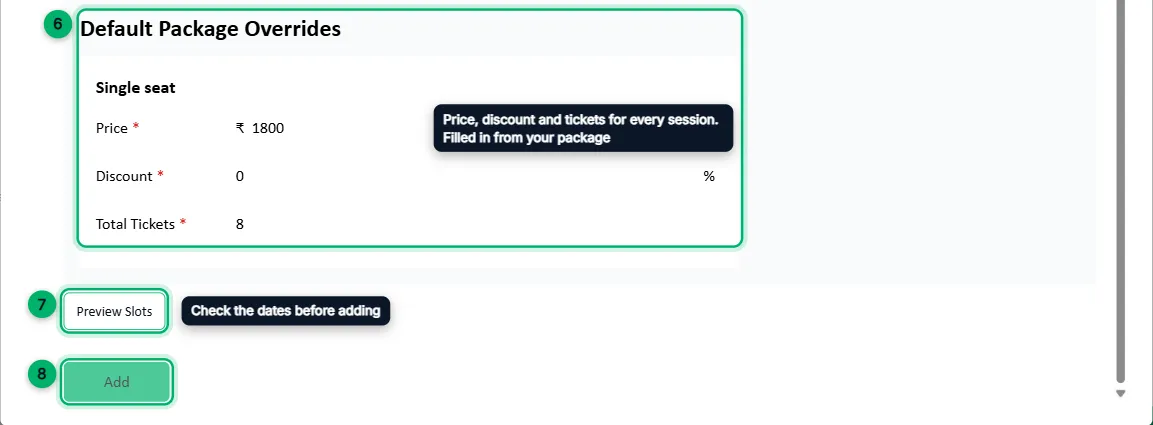
Default Package Overrides: the price, discount and tickets for every session, filled in from your packages.
-
Select Preview Slots. You must preview before you can add.
-
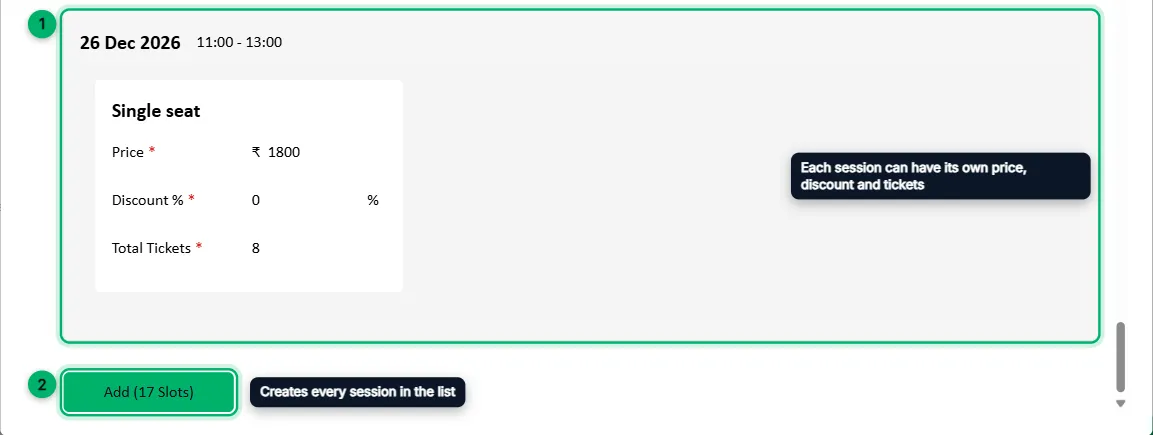
Check the list of sessions. Each one shows its date and time, and you can change its price, discount or tickets. Select Edit to go back and change the schedule.
-
Select Add (N Slots), where N is the number of sessions. You’ll see Successfully Saved slot.
Managing your slots
Section titled “Managing your slots”Upcoming slots are listed under Upcoming Slots, and past ones under Expired Slots. A repeating schedule shows as one card, with how many sessions it has.
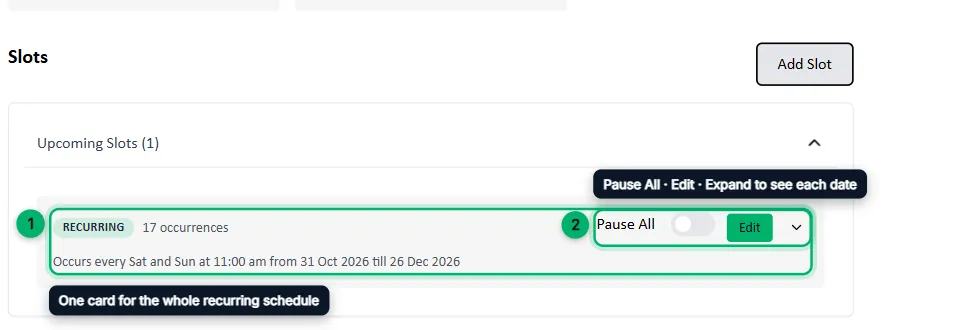
- Pause All: stop bookings for every session in the schedule.
- Edit: change the schedule’s pricing and availability.
- Expand (the arrow): see each date in the schedule.
When you expand a schedule, each date has its own controls:
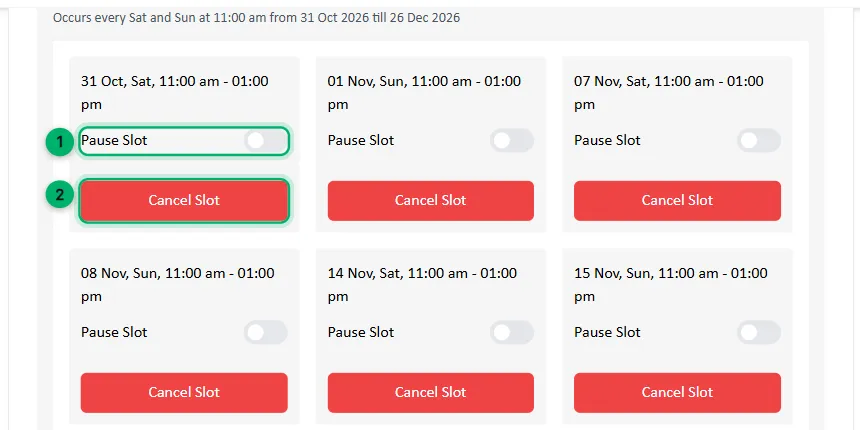
- Pause Slot: stop new bookings for that date only. Turn it off again to reopen bookings.
- Cancel Slot: cancel that date.
What’s next
Section titled “What’s next”Add your bank details so you can receive payments from bookings.